Google Tasks
Google LLCProductivity
4.626.20K Reviews
- Version
- Varies With Device
- Installs
- 10.00M
- Age Rating
- Everyone
Screenshots
Our Review of Google Tasks
 Analysis by Appyee
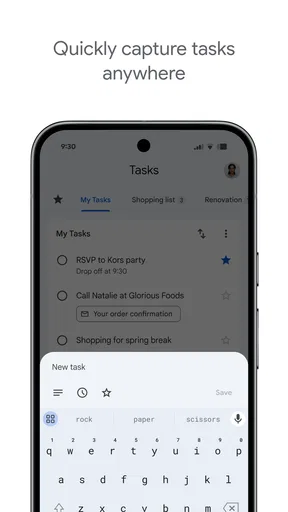
I came away from Google Tasks with the impression that it is less about building an elaborate productivity system and more about removing small bits of mental clutter. It is a free productivity app from Google LLC, designed for people who want a simple place to record things they need to do and keep them visible while working through a normal day.
That simplicity is its main appeal, but it also explains where some users get stuck. A short task list is easy to understand; a task list spread across several Google services, accounts, or dates can feel less obvious. In my experience, the app works best when I treat it as a focused action list rather than a complete project-management workspace. If you want a clean way to remember errands, follow-ups, study steps, or household jobs, it is easy to recommend. If you need deep collaboration, detailed planning, or a large database of notes, you may outgrow it quickly.
Why a simple task app can still feel confusing
The first friction usually appears before the first task is even created. Google Tasks is associated with Google Workspace, so people often expect every task to behave exactly like an email reminder, a calendar event, or a note. Those tools overlap, but they are not interchangeable. A task is useful because it represents an action to complete; an email is communication, a calendar entry reserves time, and a note stores information. Mixing those purposes is a quick way to create a messy system.
I found it helpful to decide what belongs in the app before adding anything. “Call the dentist” is a good task. “Dentist information” is probably better kept in a note or contact record. “Dentist appointment at 3 p.m.” belongs on a calendar. This small distinction prevents the list from becoming a dumping ground and makes the next action easier to recognize.
Another common sticking point is expecting a task list to organize itself. The app can hold your reminders, but it does not replace the judgment needed to decide which item matters first. A list containing “buy milk,” “finish report,” “research holiday,” and “sort old files” may be accurate, yet still unhelpful if everything looks equally urgent. I get more value when I write tasks as visible actions and group them according to the kind of work they require.
For example, “prepare presentation” is vague enough to remain unfinished for days. Breaking it into “choose three main points,” “find the latest figures,” and “write the opening slide” gives me clearer stopping points. This is one of the most useful ways to make the app feel more capable without adding complexity: use the task itself to describe the next physical or digital action.
The public response suggests that this straightforward approach works for many people. The app holds a 4.6 average from around 600 thousand ratings, and it has passed 10 million installs. Those figures do not make it perfect, but they do reflect a mature everyday tool rather than an experimental organizer. Its Everyone age rating also makes it approachable for a broad audience, including families and students who want a basic shared vocabulary for personal to-dos.
The setup checks I would make first
Before relying on the app for anything important, I would check which Google account is active. This is especially important on a phone used for both personal and work accounts. A task can seem to disappear when it was actually created under a different account, so checking the account context is a better first move than repeatedly recreating the item.
I would also create one deliberately ordinary test task, give it a clear name, and then look for it in the place where I expect to manage tasks. This confirms that the app is connected to the intended account and gives me a chance to understand the layout without risking an important reminder. Once that test item is visible, I can delete it and begin building the real list with more confidence.
When a task is connected to a date, I pay attention to whether I am using a task or a calendar appointment. A date can tell me when something should be addressed, but it does not automatically mean I have reserved time to do it. That distinction matters for deadlines. “Submit the form” is a task; “meeting with the advisor” is a calendar commitment. Keeping those separate prevents false reassurance.
I also recommend starting with a small number of lists. It is tempting to create categories for work, home, shopping, reading, fitness, finances, and every current project. In practice, too many categories make filing slower and reviewing harder. I prefer a few broad destinations at first, then add another list only when the existing structure repeatedly causes confusion.
A useful setup habit is to write tasks in a consistent style. I use an action verb at the beginning: “email,” “check,” “buy,” “send,” “book,” or “review.” This makes a long list scannable and exposes vague items immediately. If a task starts with a subject instead of an action, I ask myself what I actually intend to do with it.
Because the app is free, there is little financial risk in trying it, but there is still a time cost to moving an established system. I would not transfer every old reminder on the first day. I would test the workflow with current obligations for several days, see whether I naturally open the list, and only then decide whether it deserves to become my main task system.
Recovering a workflow when tasks get lost
When a task appears to be missing, I would avoid adding duplicates immediately. First I would check whether it was marked complete, placed in another list, assigned a different date, or created while another account was active. These checks sound basic, yet they solve the most common kind of “lost task” problem: the information is present, but the current view or account is not the one I expected.
If I had just completed an item by mistake, I would look for the completed-task area or the relevant list rather than assuming the task was permanently deleted. The exact route can vary with the current app version and device layout, so I would use the visible task controls and account context instead of relying on an old tutorial recorded for a different interface.
For recurring responsibilities, I would be especially careful about the difference between finishing today’s instance and removing the habit from my system. A repeating task is valuable for chores such as checking a weekly report or preparing a regular payment, but it can also become background noise. If I keep dismissing the same item, that is a signal to change the schedule, rewrite the action, or decide that it does not belong in the list anymore.
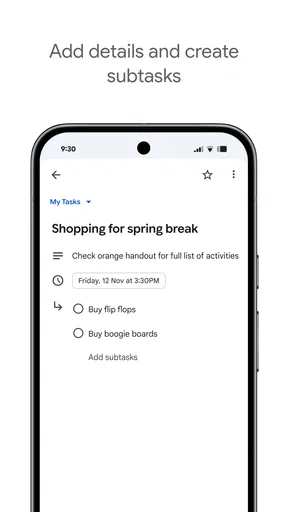
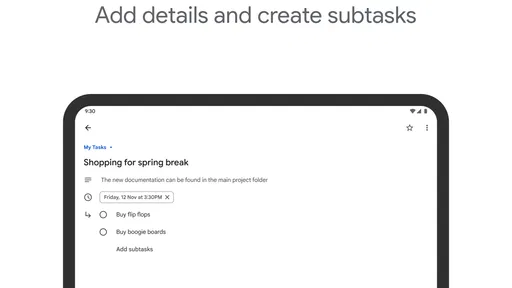
Subtasks are another practical recovery tool. When a larger item becomes intimidating, I can turn it into a short sequence and identify the next step instead of staring at a broad label. The trade-off is that excessive nesting creates its own maintenance burden. I would use subtasks for a compact procedure, not for documenting an entire project with every possible detail.
One workflow I found useful is a three-pass review. In the morning, I look only for actions that genuinely need attention today. During the day, I add new commitments while keeping their wording concrete. In the evening, I remove completed items and move anything unrealistic to a more honest date or list. The important part is not reviewing constantly; it is giving the list a predictable moment when it can be corrected.
That correction step is easy to skip because checking off a task feels productive. However, an unreviewed list slowly loses trust. Old errands, postponed decisions, and vague ambitions occupy the same visual space as real commitments. I would rather have a short, accurate list than a comprehensive archive that I no longer believe.
When the app is not the cause of the problem
Not every missing update or delayed display points to a fault in the app. A task workflow can be affected by the active account, a temporary connection problem, or a mismatch between the screen I am viewing and the place where the task was created. My first troubleshooting step is therefore simple: confirm the account, reopen the relevant list, and give the app a moment to refresh before making another copy of the task.
I would also check whether the problem is limited to one device or appears everywhere I use the same account. If the item is visible in one place but not another, that suggests a synchronization or view issue rather than incorrect task wording. If the same item is missing across the whole workflow, I would revisit where it was created and whether it was completed or moved.
Keeping the app and the device in a normal, current state is sensible, but I would avoid extreme troubleshooting as a first response. Clearing information, removing accounts, or reinstalling an app can create more disruption than it solves, particularly when the real issue is simply being signed into the wrong Google account. Safe checks should come before destructive ones.
There is also a human cause that is easy to overlook: the task may be technically present but practically invisible because it is too vague. “Project,” “call,” or “admin” does not tell me what to do next. I might blame the list for failing to help when the real problem is that I recorded a topic instead of an action. Rewriting the item often restores usefulness faster than changing settings.
The same applies to overload. If every minor thought becomes a task, the app can start producing anxiety rather than clarity. I use it for commitments and next actions, not for capturing every idea I may someday explore. A separate place for reference material keeps the task list focused and makes the important items easier to notice.
Where it fits beside familiar alternatives
Compared with a paper list, Google Tasks is easier to revise when plans change and more convenient for people already working inside Google’s ecosystem. Paper still has a satisfying immediacy, though, and it can be better for a quick session where I want to see everything without opening a phone. The choice depends less on features than on which medium I will actually review.
Compared with a notes app, this tool gives actions a clearer home. Notes are excellent for collecting background information, meeting details, or unstructured thoughts, but action items can disappear inside long pages. I prefer to keep the explanation in a note and place the next step in the task list. That division reduces the temptation to turn every task into a miniature document.
Compared with a full project-management platform, Google Tasks feels lighter and less demanding. That is an advantage for personal errands and small routines, but a limitation for teams that need assignments, detailed status tracking, dependencies, discussions, or extensive project history. I would not choose it as the central system for a complex group project simply because its clean interface is not designed to carry every layer of that work.
It also differs from a calendar. A calendar answers “when will this happen?” while a task list answers “what still needs doing?” I get the best result by using both without forcing one to replace the other. If an action needs a protected block of time, I put that time on the calendar and keep the task as the completion target. If it only needs to be remembered, the task list is usually enough.
For a realistic weekday, I might add “send the revised document,” “pick up a prescription,” and “compare two internet plans.” The first is a work follow-up, the second is a time-sensitive errand, and the third is a decision that could expand into several steps. I would keep the first two as direct actions, then split the comparison into smaller tasks only if it becomes difficult to start. This prevents the list from becoming over-engineered while still giving a complicated decision a clear entry point.
Who should use it, and who should skip it
I think the app is a strong fit for someone who wants a dependable personal checklist without learning a complicated system. Students can use it for assignment steps, households can separate errands from longer chores, and office workers can keep follow-ups from getting buried in their inbox. It is also a good starting point for anyone who has never maintained a digital task list and wants to learn the basic habit of capturing, scheduling, and completing actions.
It is less suitable for a person who needs rich collaboration or detailed project control. A team may require ownership, conversations, files, approval stages, and a history of decisions. A user managing a large research project may prefer a tool that combines tasks with notes and references in a deeper way. In both cases, the simplicity that makes Google Tasks comfortable for personal use becomes a boundary.
I would also hesitate to recommend it to someone who wants a motivational planning experience filled with visual dashboards, advanced statistics, or extensive customization. This is a quiet utility, not a game-like coach. Its value comes from reducing friction, not from making task management entertaining.
Google LLC released the app on April 24, 2018, and its continued presence in the productivity category makes sense because the basic need has not changed: people still need a place to remember the next thing. The free price makes experimentation easy, and the broad age rating removes another barrier for ordinary personal use. Still, longevity does not remove the need to maintain good habits around account selection, task wording, and regular review.
My practical verdict is that Google Tasks earns a place on my phone when I want a focused list that stays out of the way. I would set it up with one test item, confirm the right account, begin with only a few lists, and write every entry as a concrete action. If something seems missing, I would check completion status, list placement, dates, account context, and device differences before assuming the app has failed.
The best reason to choose it is not that it does everything; it is that it makes a small, useful part of planning easy to repeat. For personal to-dos, simple routines, and follow-ups connected to everyday Google use, that restraint is a genuine strength. For collaborative projects, deep notes, or highly visual planning, I would choose a more specialized alternative and let this app remain what it does best: a clean place to keep the next action visible.
Privacy and Permissions
See what permissions an app requests and how it handles your data.
- Identity
- find accounts on the device
- Contacts
- find accounts on the device
- Other
- view network connections, create accounts and set passwords, measure app storage space, full network access, read sync settings, run at startup, control vibration, prevent device from sleeping, toggle sync on and off, read Google service configuration
Verdict
Strengths of Google Tasks
- Simple interface makes adding and organizing tasks quick.
- Tasks sync reliably across devices with the same Google account.
- Due dates and recurring tasks help maintain daily routines.
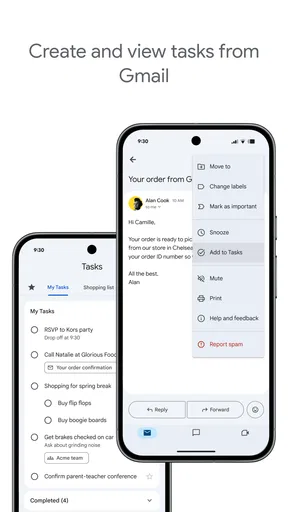
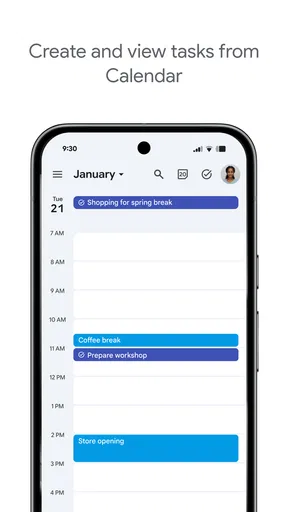
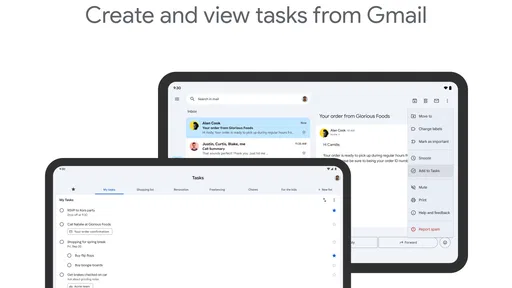
- Tasks can be created directly from Gmail and Google Calendar.
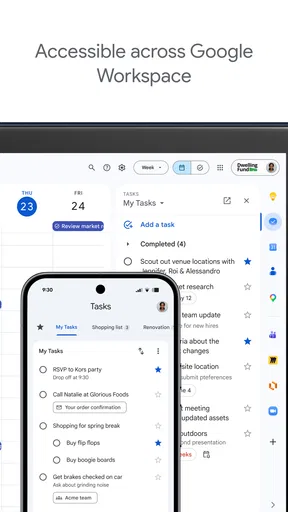
- Separate lists make it easier to organize work and personal items.
Limitations of Google Tasks
- Limited collaboration features compared with full project-management apps.
- No built-in time tracking, notes formatting, or advanced task details.
- Reminders and notifications offer fewer customization options.
- The app has limited support for attachments and task-related files.
- Power users may miss tags, priorities, filters, and detailed views.
Other Releases by Google LLC
View All
Google Calendar
Productivity4.6

Google Messages
Communication4.6

Tools4.0

Google TV
Video Players & Editors3.9
Similar Picks in This Category
View AllGoogle Calendar
Google LLC4.6

Google Drive
Google LLC4.3

Google Assistant
Google LLC3.9

Microsoft OneDrive
Microsoft Corporation4.6

Samsung Calendar
Samsung Electronics Co., Ltd.4.1

Microsoft OneNote: Save Notes
Microsoft Corporation4.6
Frequently Asked Questions
What is Google Tasks, and what can I use it for?
Google Tasks is a simple task-management app for creating to-do lists, organizing responsibilities, and tracking deadlines. You can add tasks, write details, assign due dates, and divide larger activities into subtasks. It works particularly well for users already relying on Gmail or Google Calendar, because tasks can be connected to calendar events and managed alongside other Google services.
Does Google Tasks synchronize across Android, iPhone, and the web?
Yes. Google Tasks synchronizes through your Google account, allowing you to access the same lists and tasks on compatible mobile devices and through Google services on the web. After signing in, changes such as completed tasks, edited descriptions, and new deadlines are generally reflected across devices. A stable internet connection may be required for the latest updates to appear everywhere.
Can Google Tasks send reminders and show deadlines in Google Calendar?
Google Tasks supports due dates and notifications, helping you remember important responsibilities without needing a separate reminder app. Tasks with dates can also appear in Google Calendar, where you can review them alongside appointments and events. The exact notification experience may depend on your device settings, account configuration, and whether notifications are enabled for Google Tasks and related Google applications.
Is Google Tasks free, and are there any important limitations?
Google Tasks is available at no additional cost for normal personal task management. It covers essential features such as lists, subtasks, due dates, recurring tasks, and synchronization with your Google account. However, it is intentionally lightweight and does not offer the advanced project-management tools found in some competing apps, such as team assignments, detailed workflows, time tracking, or extensive customization.
Is Google Tasks suitable for teamwork and shared task lists?
Google Tasks is mainly designed for individual planning rather than full collaborative project management. It is useful for personal errands, study plans, work follow-ups, and reminders connected to Gmail or Calendar. If you need shared lists, comments, task ownership, file collaboration, or progress reporting for a team, you may find Google Keep, Google Workspace tools, or a dedicated productivity platform more suitable.
